
VISENTRA LAB TASK GUIDE
Before You Start a Task
Before recording your first task, review this guide carefully.
It covers first-person POV recording, equipment, task durations, available tasks, points, withdrawals, registration, and recording requirements.
Following these instructions helps prevent avoidable review failures.
POV RECORDING
01. What Is First-Person POV Recording?
First-person POV means recording the task from your own point of view.
The camera should show the activity in a way that closely represents what you see while performing the task.
You must use a neck-mounted phone holder or another stable hands-free POV recording setup.
The phone should not be placed far away to record your whole body, and another person should not hold the phone for you.
- Use a stable hands-free POV setup
- Keep the phone horizontal
- Angle the camera slightly downward
- Keep the working area clearly visible
- Both hands must be clearly visible for at least 80% of the video
Does the Sound Matter?
Normal household sounds, environmental noise, and natural background sounds are acceptable.
Audio quality is not the main requirement.
The priority is that the video itself meets the recording requirements, including:
- Correct first-person POV angle
- Both hands clearly visible
- Task process clearly shown
- Good lighting
- Natural movements
- All task-specific instructions followed
Correct First-Person POV Example
This Is How You Should Record a Task
When completing a task, record the activity naturally from a first-person POV. Keep both hands clearly visible, follow the task instructions, and show the complete process.
EQUIPMENT & DURATION
02. How Do I Set Up a First-Person Recording Device?
Professional camera equipment is not required.
A simple hands-free POV phone holder can be made using:
The phone should be securely fixed in a horizontal position and angled slightly downward so both hands and the working area remain clearly visible.
Users can also search online for:
DIY neck phone holder with wire hanger
or
DIY POV phone mount with hanger and rubber band
How to Make a Simple POV Phone Holder
TASK DURATION
Do I Have to Record for a Full Hour?
No.
Different tasks have different required durations.
Depending on the tasks currently available in the app, users may see:
- 5–10 minutes
- 10–20 minutes
- 20–40 minutes
- 30–60 minutes
Task durations vary. Always follow the duration shown for the specific task in the app.
Choose an available task that fits your situation and follow the exact duration and instructions shown for that task.
Do not deliberately slow down the activity to increase the recording time.
Do not intentionally shorten the task.
Complete the task naturally.
TASKS, POINTS & REVIEW
03. What Types of Tasks Are Available?
- Waste sorting, collection, and recycling
- Preparing multi-course meals
- Cleaning up the kitchen after cooking
- Cleaning stovetops, burners, and stove grates
- Unpacking travel luggage and putting items back in place
- Real repair and maintenance tasks involving tools
- Ironing clothes
- Other hands-on tasks involving tools
- Food preparation and service-related tasks
Available tasks, durations, instructions, and points may vary.
Always follow the information currently displayed in the app.
Example Task Durations and Points
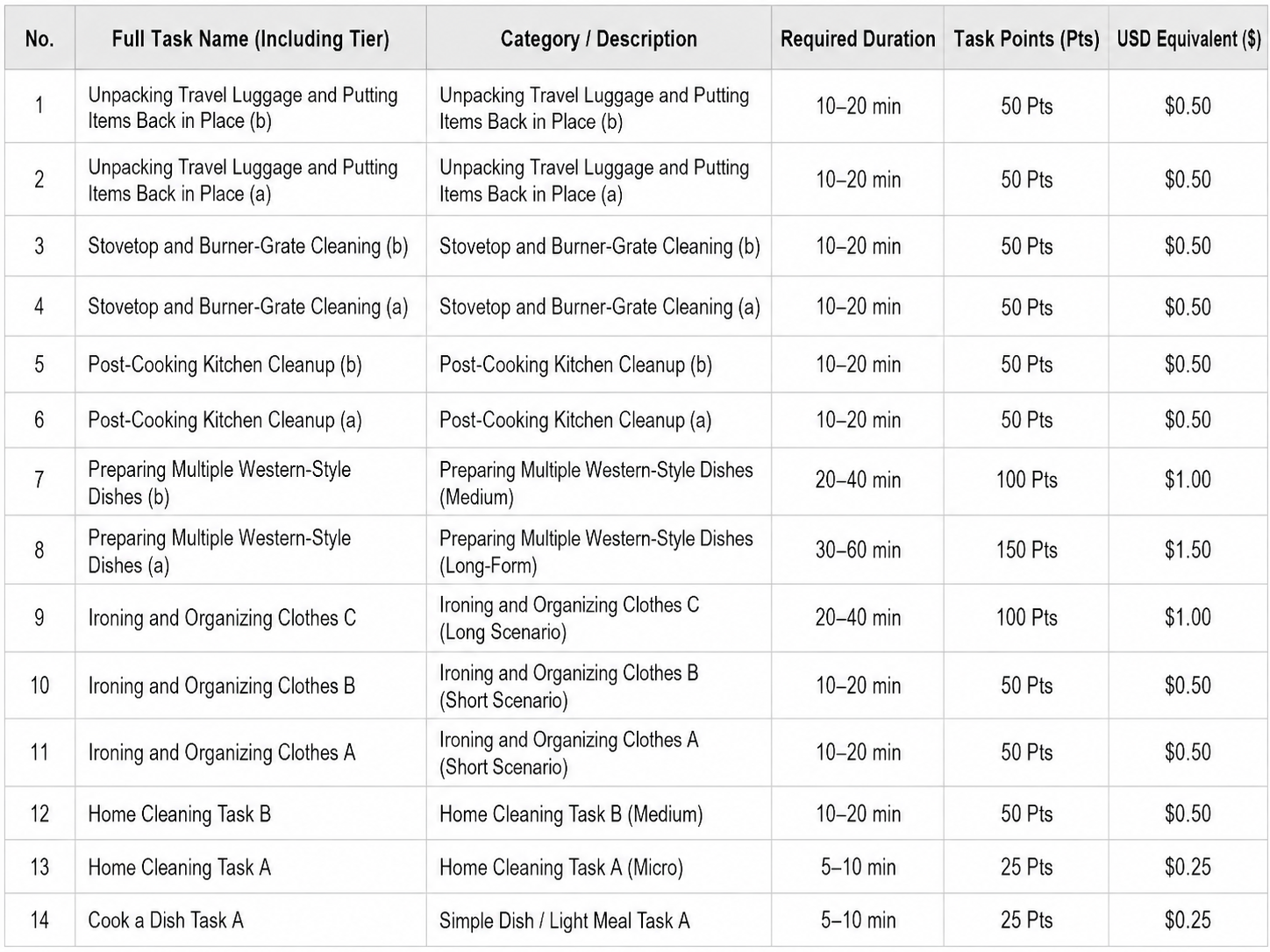
How Many Times Can I Claim the Same Task?
The same task can be claimed up to three times in total.
Each claim must be completed as a separate task cycle.
Claim the task → complete and submit the recording → wait for review → claim the task again after it becomes available.
Submitted tasks are generally reviewed within 2–3 days.
After the review is completed, the task becomes available again whether the previous submission was approved or rejected, until the maximum of three claims has been reached.
Each new claim must be completed and recorded independently.
POINTS
100 Points = 1 USDT
- 100 Points = 1 USDT
- 300 Points = 3 USDT
- 500 Points = 5 USDT
How Long Does Video Review Take?
Submitted videos are generally reviewed within:
2–3 days
After the review is completed, users can check the review result and corresponding points in the app.
RECORDING & UPLOAD RULES
04. Important Recording & Upload Requirements
Important
Record in Real Time and Upload Immediately
The task must be recorded in real time. Pre-recorded or previously recorded videos must not be used.
As soon as the task is completed and recording stops, upload the video immediately through the app.
During the upload:
- Do not exit the app.
- Do not close the upload screen.
- Do not cancel the upload.
- Do not intentionally interrupt the internet connection.
- Do not leave the upload process before the video has fully uploaded.
Record in real time → Complete the task → Upload immediately → Wait until the upload is fully completed
Do not exit the app or interrupt the upload until the video has been successfully uploaded.
Record the Complete Task From the Beginning
Start recording before the task begins.
Do not begin recording halfway through the task.
The complete process must be recorded from beginning to end.
Keep Both Hands Clearly Visible
Both hands must be clearly visible for at least 80% of the video.
The video should also clearly show:
- Hand movements
- Objects being handled
- The working area
First-Person POV Is Mandatory
Use a stable hands-free first-person POV recording setup.
Do not:
- Place the phone far away to record yourself.
- Ask another person to hold the phone.
- Record primarily from a third-person angle.
Videos that do not meet the required first-person POV format are not eligible for rewards.
Complete the Task at a Natural Pace
Do not:
- Deliberately slow down.
- Repeat unnecessary movements.
- Remain inactive for long periods.
- Intentionally extend the task duration.
Complete the activity naturally at a normal pace.
Use Good Lighting
Avoid dark or poorly lit environments.
The video must clearly show:
- Both hands
- Hand movements
- Objects being used
- The task area
Perform Natural Actions
Your hand movements should be natural and relevant to the task.
Do not perform unnecessary actions only for the camera.
Read the Specific Instructions Before Every Task
Different tasks may have different requirements.
Before starting each task, read the complete Task Instructions shown in the app.
The general rules on this page do not replace the specific requirements shown for each task.
REGISTRATION
05. What Happens After Registration?
After registration, users must verify their email address before logging in.
If the verification email is not visible in the inbox, check: Spam / Junk
After the email address has been verified, return to the app and log in.
WITHDRAWALS
06. How Do Withdrawals Work?
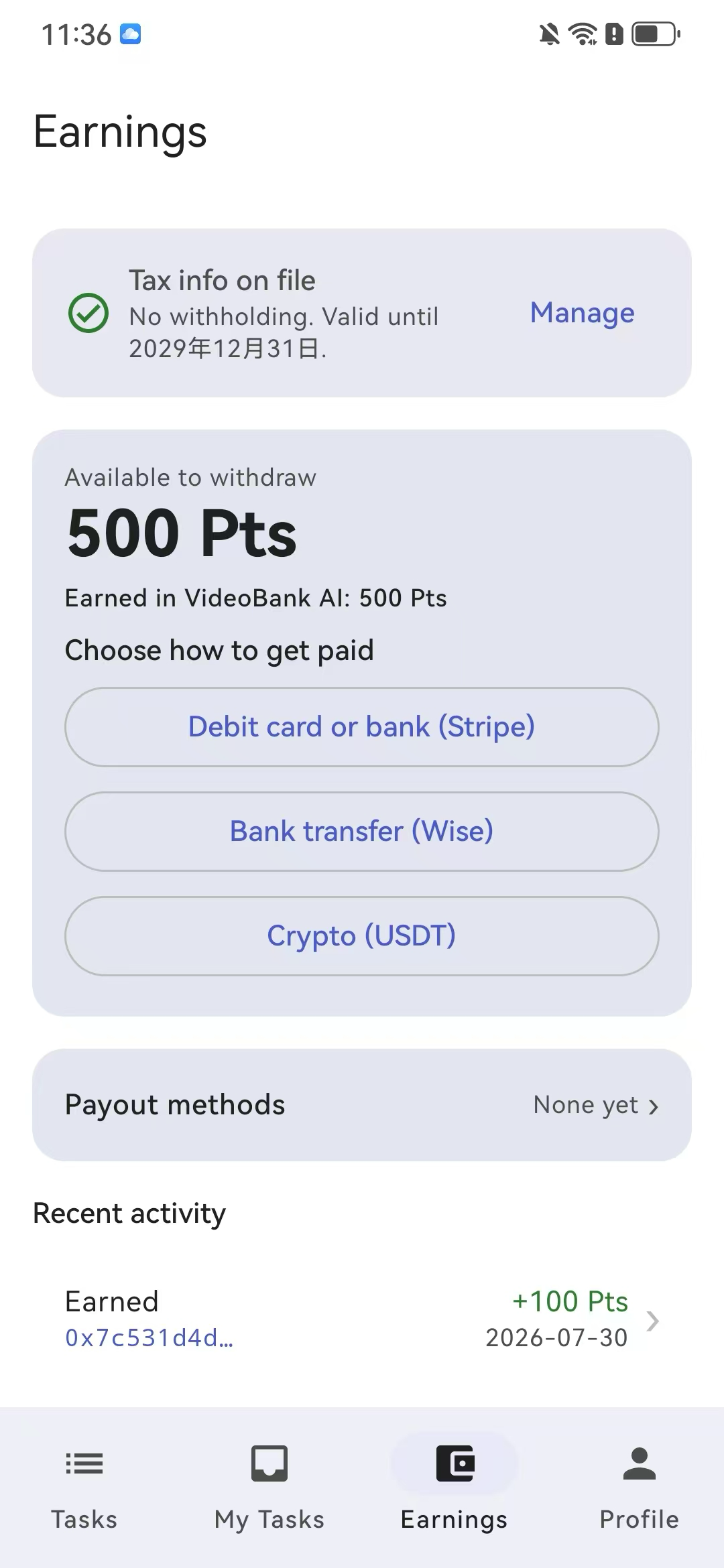
Minimum Withdrawal
500 Points = 5 USDT
The minimum withdrawal amount is:
500 Points
No Tax ID?
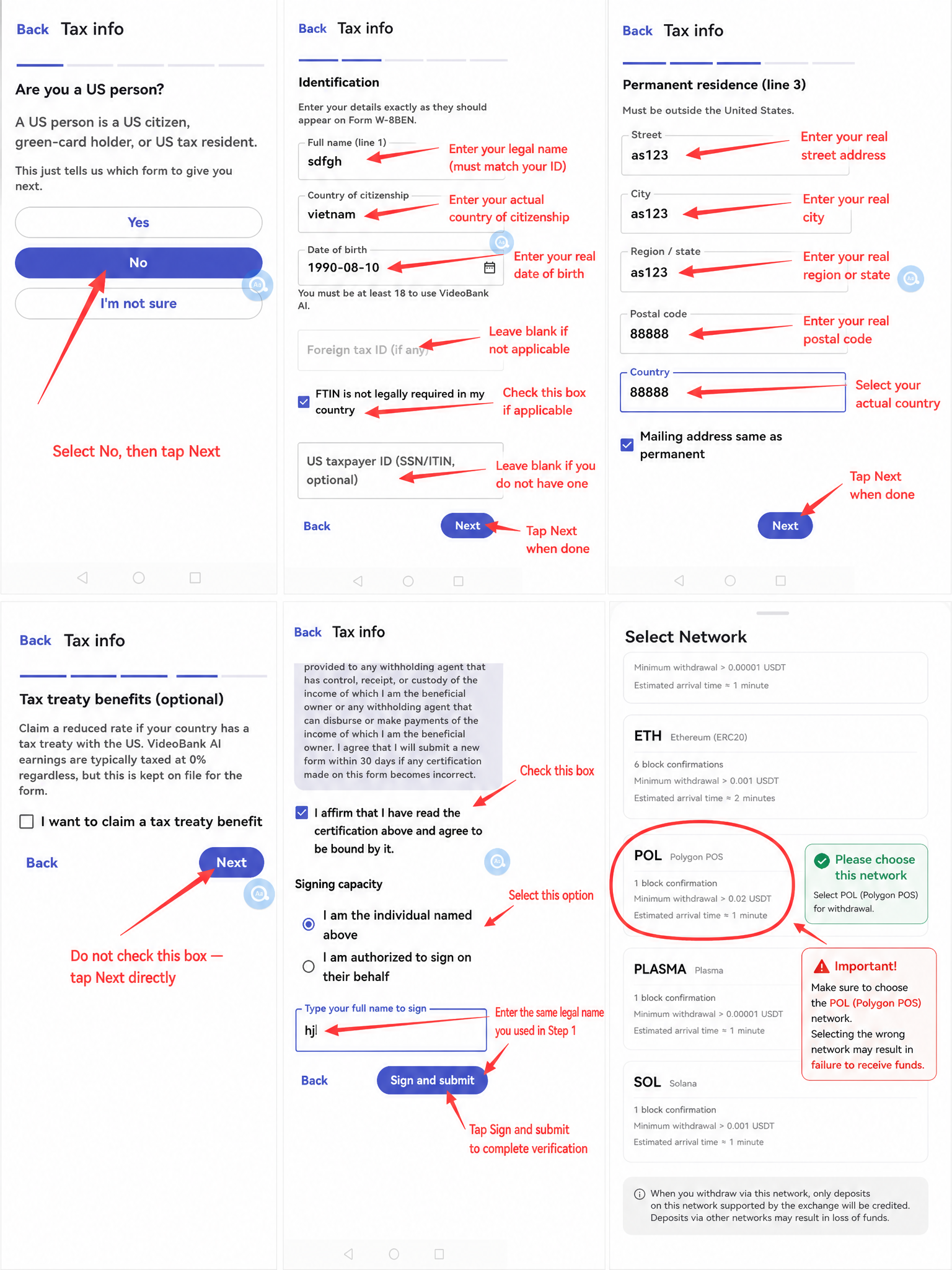
If a participant does not have a Tax ID, they can choose:
USDT Withdrawal
where this option is available in the app.
Withdrawal Processing Time
Eligible withdrawal requests are normally processed within:
24 hours
Before submitting a USDT withdrawal, users should carefully verify:
- Wallet address
- Selected network
- Withdrawal amount
- Other withdrawal information
Withdrawal Guide
Withdrawal Example
ONE-ON-ONE HELP
Not Sure About Your Setup? Ask Before You Record.
If you:
- Do not understand first-person POV recording
- Are unsure about your phone angle
- Need help building a POV holder
- Cannot find your verification email
- Have questions about a task
- Have video upload problems
- Are unsure whether your recording setup is correct
contact WhatsApp Customer Service before recording.
Users can send a screenshot or photo of their setup and ask for guidance.